 ToolHub
How to Convert JPG to PDF Free Without Uploading
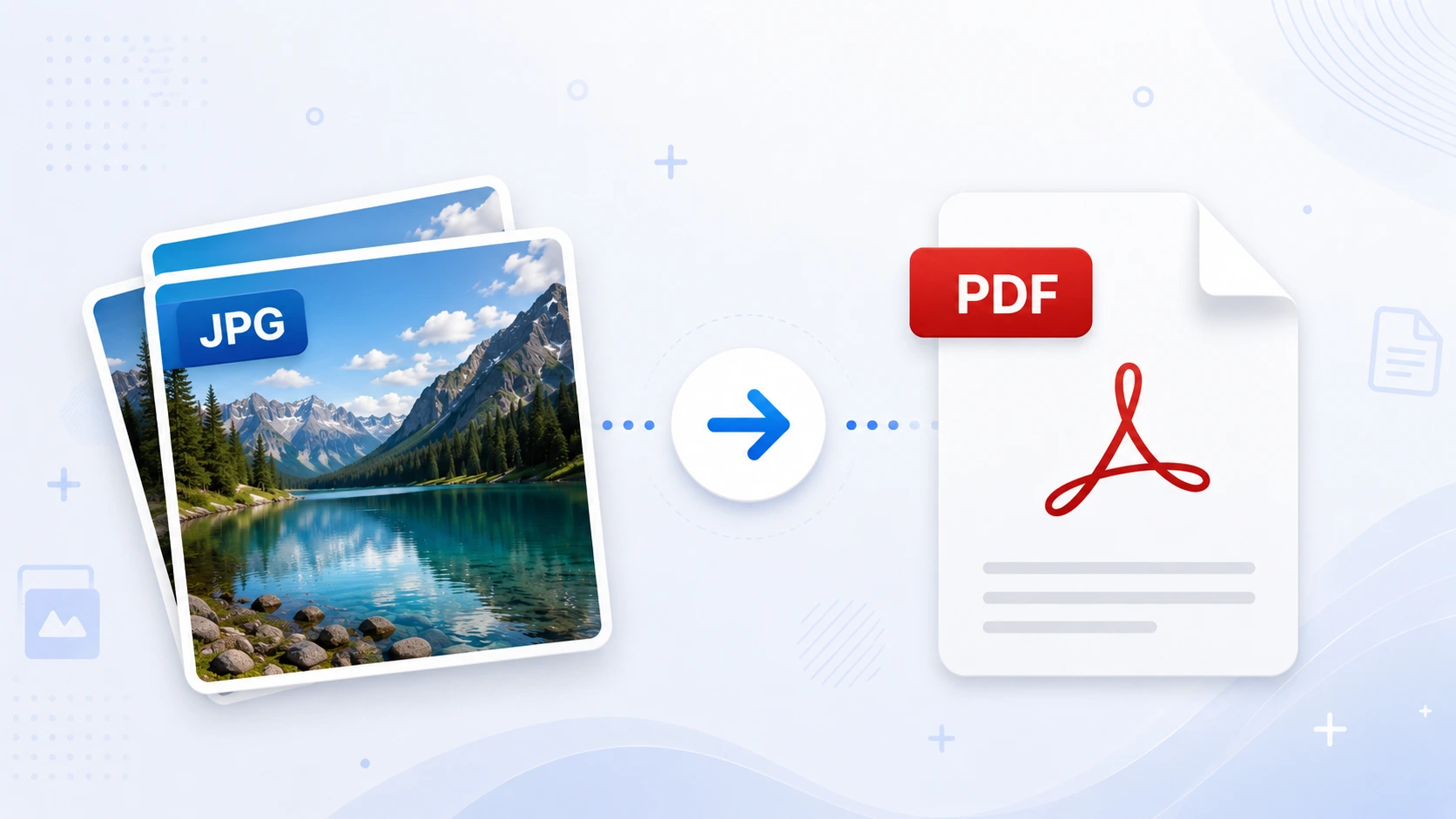
A visa portal rejected my photo four times because the file was too heavy, and portals like it expect a PDF the moment several pages belong together. I refused to hand my documents to a random converter, so I built one that never uploads. A modern browser can read your JPG and write a PDF on your device in seconds, and your photo never travels to a server. Here is how it works, and the details that decide a good PDF.
If you are working with other document conversions, the same principles apply. See our guides on image compression, merging PDFs, and PDF to Markdown.
The short answer
- Conversion does not need a server. The browser embeds your JPG into a PDF on your device.
- Quality is untouched. The JPG is embedded, not re-compressed.
- Multiple JPGs become one PDF. Each image goes on its own page, in your chosen order.
- You control the page. A4 or Letter for forms and printing, fit to image for exact size.
Why convert JPG to PDF
JPG is the best format for a single photo, but PDF is the format the world expects for documents. Job applications, visa portals, banks, and schools all ask for PDF because it looks the same on every screen and printer, it can hold many pages, and it is harder to edit by accident. People who fight with official portals know the pattern well: the form accepts a JPG for the photo, but wants a PDF the moment several pages belong together. That is the exact moment your image should become a PDF.
What actually happens when the browser converts
A browser converter reads your JPG into memory, creates a new empty PDF, and places the image on a page at its real size. Then it writes the result back to your disk as a download. At no point does the photo leave your device, because the library that does the reading and writing runs inside the tab, on your machine. That is the whole trick, and it is why a local conversion is as private as printing a photo at home.
The word that matters here is embedding. The converter places your JPG inside the PDF as-is, without re-compressing it, which is why the quality survives. And because the work is client side, inside your browser, there is no server copy of your photo anywhere.
Convert JPG to PDF, step by step
- Open the Image to PDF tool. It loads entirely in your browser.
- Add your JPG files, in the order you want them to appear.
- Drag to reorder if you need to. Each image becomes one page.
- Press convert. The browser builds the PDF on your device.
- Download the result. Your originals stay exactly where they were.
One tip before you convert: if a JPG is unusually heavy, run it through the Image Compressor first. A lighter image means a lighter PDF, and portals with size limits accept it on the first try.
Convert JPG to PDF free and private, right in your browser.
Open Image to PDFPage size, margins, and order: the details that decide a good PDF
Choose A4 or Letter when the PDF will be printed or submitted to a portal, and choose fit to image when the page should match the photo exactly. These small settings are the difference between a PDF that looks professional and one that looks pasted.
Margins give the page breathing room but shrink the photo slightly, so use them for documents and skip them for scans. Let orientation follow the photo, not the page, because a landscape photo on a portrait page wastes half the sheet. And check the order before you convert, because a PDF is final once written.
The honest limits
The phone is where a local tool shines the most, because phone photos are exactly the files people most often upload to random converter sites, and a normal batch of screenshots or scans converts in seconds. The honest caveat is memory: a folder of dozens of huge camera photos can strain an older phone, so convert in smaller batches, or move that one job to a desktop.
Two more limits, so you know exactly what you get. The PDF holds your images as images, which means there is no text layer to search and OCR stays a separate step. And once the PDF is written it is final, so if you later need a different page order, you convert again or combine files with a PDF merger.
When to use PDF instead of JPG
| Situation | Best format | Why |
|---|---|---|
| A single photo for a website | JPG | Small size, universal support |
| A document with several pages | Holds many pages in one file | |
| A job or visa application | Portals expect PDF | |
| A photo with transparency | PNG | JPG cannot keep transparency |
| Printing a document | Looks the same on every printer |
And when the destination wants a different image format instead of a PDF, the Image Converter handles that switch on your device too.
Sources
- pdf-lib documentation for how browsers read and write PDF files.
- The PDF Association for the format standard and its history.
- Adobe, what a PDF is for why the format became the document standard.
- Smashing Magazine, local first web development for the case against uploading files.
Frequently asked questions
Can I convert JPG to PDF without uploading?
Yes. A modern browser can read your JPG and write a PDF on your device, so the file never travels to a server.
Does converting JPG to PDF reduce quality?
No. The converter embeds your JPG into a PDF page without re-compressing it, so the image keeps its original quality.
Can I convert multiple JPGs to one PDF?
Yes. Add several JPGs and the tool places each one on its own page, in the order you choose.
Is it safe to convert personal photos to PDF in the browser?
It is the safest option, because the photo never leaves your computer. There is no server copy to leak.
Can I convert JPG to PDF on my phone?
Yes. The browser handles a normal batch in seconds. For a folder of dozens of huge camera photos, convert in smaller batches or use a desktop.
Will my PDF be A4 or the size of the image?
You choose. A4 or Letter fits forms and printing, while fit to image makes the page match the photo exactly.
Is a converted PDF searchable with OCR?
No. The PDF holds your images as images, so there is no text layer to search. Searchable text needs a separate OCR step.
Final words
JPG is for photos, PDF is for documents, and the moment a photo joins a document it should become a PDF. Doing it on your device takes seconds and removes the only risky step in the whole process, the upload.
Related guides: Merge PDF without uploading · Image compression · PDF to Markdown