 ToolHub
How to Resize an Image to an Exact KB Size for Online Forms
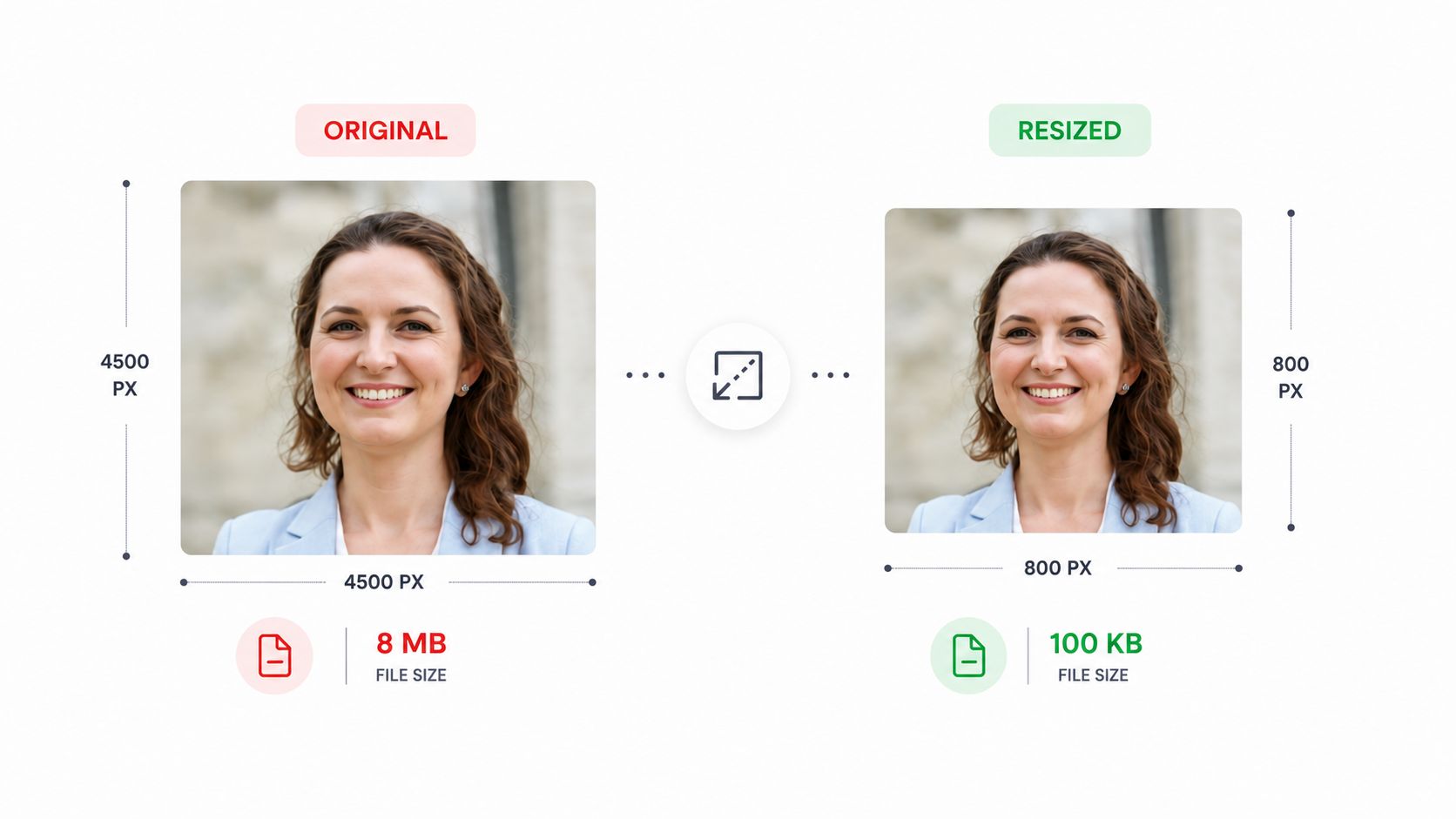
You can resize an image to an exact KB size by setting the target in a browser resizer and letting it adjust quality and dimensions until the file lands under your limit. Here is how to do it step by step.
If you are working with other image and document tasks, the same principles apply. See our guides on image compression, JPG to PDF, and PDF to Markdown.
What you will read in this article
Why a form made me build this
Last year a visa portal rejected my photo four times. The form demanded a file under 100 KB and my camera produced 3.8 MB. I resized the pixels and uploaded again. Rejected. The file was still too heavy. That day I learned the difference between dimensions and file size, and later I built a Target KB mode into the Image Resizer so you do not have to fight that form alone.
Pixels are not KB
Most people think a smaller picture means a smaller file. Sometimes yes, but not always. Dimensions decide how big the image looks on screen. The KB size decides how heavy the file is. An 800 pixel photo saved at 100 percent quality can weigh more than a 1200 pixel photo saved at 70 percent. Forms only care about the second number. To please a form you must control both dimensions and quality, and let the file size land where the form wants it.
Resize to an exact KB, step by step
- Open the Image Resizer and choose the Target KB mode.
- Type the exact limit the form shows, for example 100.
- Pick JPG for photos, since it compresses better than PNG.
- Download the result and check the size in your file manager.
- Upload it to the form. It should pass on the first try.
The tool tries different quality levels, and if needed slightly smaller dimensions, until the file fits under your number. You do not guess. The tool does the math.
Open Image Resizer
See the tool in action
This is what the Image Resizer's Target KB mode looks like. Type your limit, and the tool finds the right quality and dimensions automatically.
Common target sizes and how to reach them
| Target | Good width | Quality | Typical use |
|---|---|---|---|
| 20 KB | 400 to 600 px | 60 to 70% | Old government forms |
| 50 KB | 600 to 800 px | 70% | Job applications |
| 100 KB | 800 to 1200 px | 75 to 80% | Visa and ID uploads |
| 500 KB | 1600 to 2000 px | 85% | Email and web |
These are starting points, not laws. A busy photo with lots of detail weighs more than a plain one at the same settings, so always check the final KB before uploading.
Keep it sharp at a small size
Shrink dimensions first
The cheapest way to lose KB is to remove pixels the form never needed. A passport photo shown at 400 pixels does not need 4000. Cut the dimensions and the file drops with almost no visible loss.
Let quality do the fine tuning
After resizing, quality is the setting that lands you exactly on the target. Between 60 and 80 percent, faces and text stay readable for form use.
Use JPG, not PNG
PNG stays large for photos. If the form accepts JPG, always choose it for pictures. Save PNG only for logos with transparency.
Mistakes to avoid
Resizing pixels and ignoring quality
This is the mistake that got my visa photo rejected. Small pixels at 100 percent quality still make a heavy file.
Upscaling to try to hit a size
Enlarging a photo adds fake pixels and makes the file bigger and blurrier. Never upscale to solve a size problem.
Compressing an already compressed copy
Each pass removes more detail. Always start from the original photo, not from a file you already squeezed.
Frequently asked questions
How do I resize an image to 20 KB or 50 KB?
Use a resizer with a target KB mode, type 20 or 50, and let it adjust quality and dimensions until the file lands under that size.
Why is my photo still too big after resizing the pixels?
Because pixels and file size are different things. A small pixel count saved at high quality can still be heavy, so you must control the quality too.
Does forcing a small KB ruin quality?
Only if you also keep huge dimensions. Shrink the dimensions first, then let quality do the fine tuning, and the picture stays sharp.
Can I resize to a KB without uploading the photo?
Yes. A browser based resizer runs on your device, so the photo never leaves your computer and nothing is stored.
Final words
Forms do not care how good your photo looks. They care about one number. Control dimensions first, quality second, and let a target KB tool land the file exactly where the form wants it. Do that once and you will never fight a rejected upload again.
Related guides: Image compression · JPG to PDF · PDF to Markdown